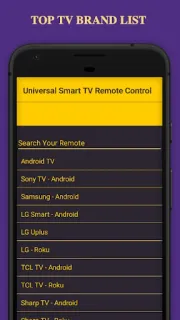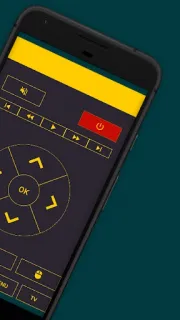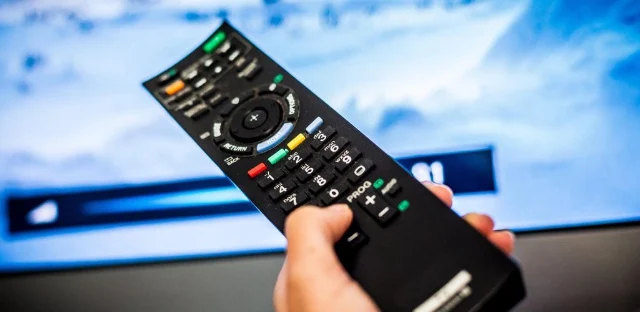
The TV is already on, a video is paused, and the remote has slipped between the sofa cushions. Universal Smart TV Remote may give you another way to navigate, play, pause or stop video from your Android phone. I would keep the physical remote nearby until the app is connected and responding; that makes setup less frustrating if the TV and phone cannot find each other.
The listing describes two control routes: Wi-Fi for a phone and TV on the same network, or infrared if your phone has an IR transmitter. It also says the app can send files to a smart TV. These are useful differences to check before relying on it: Wi-Fi control depends on both devices being connected to the same Wi-Fi network, while infrared depends on hardware in the phone. Support is described broadly across TV brands, but compatibility still depends on the particular TV and connection method.
On day one, check the connection first: for Wi-Fi, connect the phone and TV to the same network; for infrared, confirm your phone has an IR transmitter. Then try basic navigation and playback before putting the regular remote away. The app contains ads, so expect advertising within the experience. The listing describes it as free to install. I would review the Google Play permissions prompt and allow only access that fits the feature you intend to use; avoid granting access automatically just to get past setup. One specific boundary matters: the developer's update notes say Roku OS is not supported.
This app is worth considering if you want phone-based controls for a compatible smart TV and can confirm Wi-Fi or infrared will work in your setup. Skip it if your TV runs Roku OS, your phone lacks IR and same-network Wi-Fi control is not suitable, or you need a dependable replacement before checking compatibility. Keep your usual remote available until the controls you need work. Check the Google Play button just below to review the listing before you install.