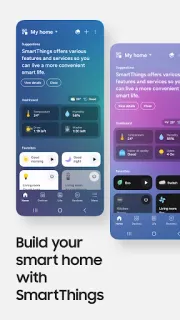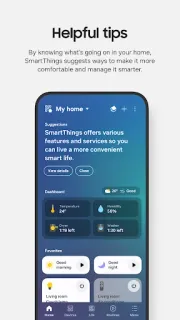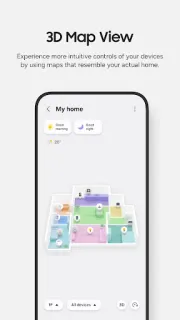
You’re heading out and want to check whether a connected appliance is still running, or set a routine that responds to the time or a device’s status. SmartThings is built for that kind of home-management task: bring compatible devices into one app, check their status and control them without opening a separate app for each brand. Its strongest case is a home already organized around Samsung TVs or appliances, with other compatible smart home devices alongside them.
The app can connect and control Samsung smart TVs, appliances, smart speakers and compatible products from brands such as Ring, Nest and Philips Hue. You can monitor devices, build routines triggered by time, weather or device status, allow other people to share control, and receive automated status notifications. Voice control through Alexa, Bixby and Google Assistant is also supported. SmartThings can connect many brands, but compatibility still depends on each device; check your exact model before planning a routine around it.
The main catch is fit: SmartThings is optimized for Samsung phones, and some features may be limited on phones from other manufacturers. Features can also vary by country, so a compatible brand name alone is not enough reason to assume every function will work. Wear OS watch access is available when the watch is connected to a phone, with quick access to routines and device controls. The app is free to install, but connected devices may have their own costs, accounts or setup steps. A wireless printer or smart TV will not become controllable just because it uses Wi-Fi; it needs to be supported by SmartThings.
Install SmartThings if you already use Samsung home products or want one control point for a checked list of compatible devices. Skip it if your home is mostly made up of devices that rely on separate apps, or if you need a particular feature to work on a non-Samsung phone and have not confirmed support. For a smaller setup, the device maker’s own app may be the simpler choice; for mixed brands, compare compatibility before moving your routines. Check the Google Play button just below to open the listing and confirm the app is the one you want.