I’ll show you how to review and certify an HOS log before the next shift makes an overlooked entry harder to sort out.
Aaron HaleReviewer · published Nov 9, 2026 · 6 min read
01A shift is ending: check the log before you certify
The truck is parked, and the last task on my list is the Hours of Service log. I would not tap Certify just because the shift feels finished. First, I want to see whether the recorded duty statuses match the day I actually had: driving, on duty, off duty, and any sleeper-berth time that applies. That quick comparison gives the certification tap its meaning.
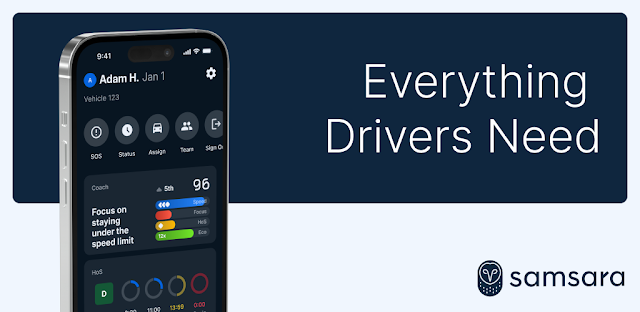
Open Samsara Driver while safely parked and signed in to the correct driver account. If you share a device, check the name shown in the app before touching the log. A coworker’s open session is a reason to stop and switch accounts, not a reason to work around the screen. Once the account is right, head for the HOS area; the entries there are the ones you need to inspect.
02Find the day you mean to certify—not just the day on screen
An HOS screen can show today’s status while the log you need to certify belongs to an earlier day. I start with the date, then read down the duty-status timeline. That order helps me avoid reviewing the right events under the wrong heading. If a break alert is visible, I treat it as a separate reminder; it is not a substitute for checking the log.
Use the controls in this order, and pause if the date or driver name is wrong:
Tap HOS in Samsara Driver.
Tap Logs to open your daily HOS records.
Tap the date selector and choose the day you need to review.
Scroll through the duty-status timeline for that day.
Keep the selected date in view as you scroll. A smartwatch alert or a message from dispatch can pull my attention away mid-review, so I return to the top and confirm the date again before acting on an entry. Next comes the part that matters most: matching the timeline to what happened outside the app.
03Compare each duty-status change with the actual stop
I read the timeline from the start of the day to the end, rather than jumping straight to the final status. For each change, I ask where I was and what I was doing. A fuel stop, a wait at a facility, and the end of a driving period are useful anchors. The point is to spot a mismatch before certifying, not to make the log look tidier.
If an entry looks wrong, open it and use the edit or annotation control available for that entry. Follow the on-screen fields and describe the correction accurately. Some driving events may have restrictions on what a driver can change; if the app blocks a correction, I leave the event intact and use the in-app message to contact a manager or dispatch about the discrepancy. I would not certify a log I know needs attention simply to clear a task.
04Make a correction, then reread the whole day
One corrected entry can change how the surrounding timeline reads. After saving an edit, I go back through the day from the beginning and check the sequence again. I pay particular attention to transitions around breaks and the end of the shift, because a plausible-looking final status can hide an earlier mistake. If I added a note, I reread it for plain, factual wording.
Here is the short path I use when a change is available:
Tap the duty-status entry that needs attention.
Tap Edit or the entry’s available annotation control.
Enter the accurate details and tap Save.
Return to Logs and review the full day again.
Do this while parked, with enough connection for the change to appear in the log. A weak Wi-Fi router connection at a stop can make it tempting to assume a tap went through. I wait until I can see the revised entry on screen. If it has not appeared, I check the connection and the app before moving on to certification.
05Certify only after the date and timeline match
Certification is the final check, not the tool for fixing a mismatch. Once I can account for the entries on the selected day, I look for the certification action on that log. I read any confirmation text before accepting it, since the action applies to the day I have open. If the button is unavailable or a correction is still unresolved, I stop there and address that issue first.
To finish a log that is accurate:
Tap HOS, then tap Logs.
Select the reviewed day using the date selector.
Tap Certify for that day.
Read the confirmation and tap the control to confirm certification.
Afterward, I check the day’s log for its certified status rather than assuming the confirmation tap completed the job. If I am wearing wireless earbuds, I still give the screen my full attention here; an audio notification is easy to miss, and certification depends on what the log actually shows. The next useful check is whether the record is ready if someone asks to see it.
06Keep the certified log easy to find for an inspection
A certified log is most useful when I can get back to it without hunting through the app at the roadside. I remember the path HOS > Logs and keep the correct driver account signed in on the device I use for work. Samsara Driver also provides access to inspection reports, so I would locate those separately before a busy stop rather than assume they live inside the HOS timeline.
For my routine, the stopping point is clear: the selected day shows as certified, and I know how to reopen it. If a later question reveals a discrepancy, I do not try to settle it from memory while distracted. I open the relevant day, read the entries, and contact a manager or dispatch through the app when I need help. That leaves a specific log and a specific question to discuss.
The takeaway
Start with HOS > Logs, select the correct day, and compare every status change with your shift before you tap Certify.
For more practical app guidance, continue to this site’s Samsara Driver page just below.
Past The First Look is independent and not affiliated with Samsara. This guide reflects the reviewer's own setup; menus can differ by device and version.

 TroubleshootingAI Piano Magic Keyboard

 TroubleshootingGroupon

 TipsWalmart

 TipsDrink Alarms

 TroubleshootingLED Light Controller &
 TipsBrowser TV Web

 TroubleshootingSony

 How-toDSW Designer Shoe

 TipsSoccer Live Scores
 Best picksIXL

 How-toGmail