Browser TV Web: 6 fixes for awkward video playback
I use these remote-friendly checks when a web video opens but is hard to play, control or find again on the TV.
Aaron HaleReviewer · published Oct 31, 2026 · 6 min read
011. Search for the video before wrestling with a tiny page menu
The video page loads, but its search box is a thin strip at the top of the TV. I start from BrowseHere’s search shortcut instead. It gives me a remote-friendly place to find the site or video without first steering a pointer across a crowded page. This pays off most when the TV remote is the only input device nearby.
When the search field offers voice input, I use the remote’s microphone button and speak a distinctive title or channel name. I check the words on screen before submitting; voice input can turn an unfamiliar title into a different search. For a precise web address, I use text entry instead. Voice is useful for a title, not for punctuation-heavy addresses.
Once I reach the right site, I stop searching and use its own video page. That keeps the next step clear: I want BrowseHere to recognise the playable video, rather than opening a string of search results that merely discuss it. If I regularly return to that page, I save it later as a bookmark.
022. Try video detection when the page’s Play button fights the remote
A Play button can look enormous on a laptop yet be awkward to select with TV focus controls. On a page with a video, I look for BrowseHere’s video detection control and open its detected-video list. I choose the item that matches the video I came to watch, rather than repeatedly pressing around the page’s overlays.
The detection results are sorted with longer videos first. That makes the list worth scanning carefully: a short clip may sit below a full episode or another lengthy item. I compare the title and duration shown on screen before selecting one. The sort order helps when I want the main programme, but it should not decide for me.
If detection picks up more than one item, I return to the page and start the intended video there first, then check the list again. Some sites need a page interaction before their player is available. If the site requires a sign-in or its own player controls, I follow those on-screen steps rather than assuming detection will bypass them.
033. Enter the web video player before adjusting subtitles
When a video begins inside a narrow page frame, I move into BrowseHere’s web video player or the video’s full-screen control before changing anything else. A larger picture makes the controls easier to see from the sofa, and it separates playback controls from links around the page. This is especially useful when the site surrounds the player with recommendations.
I press the remote’s OK button to bring up playback controls, then look for the subtitle control if I need captions. I choose an available track and check a spoken line before settling back. Subtitle choices depend on the video and its source; a caption button on one video is not a reliable guide to the next one.
I make the same check for 4K streaming: a large TV screen alone does not turn a web video into a higher-quality stream. I use the player’s available quality control, if there is one, and judge the result on screen. Keeping quality and subtitles as separate checks prevents me from mistaking a sharper picture for a better playback setup.
044. Turn on ad blocking before reopening a cluttered video page
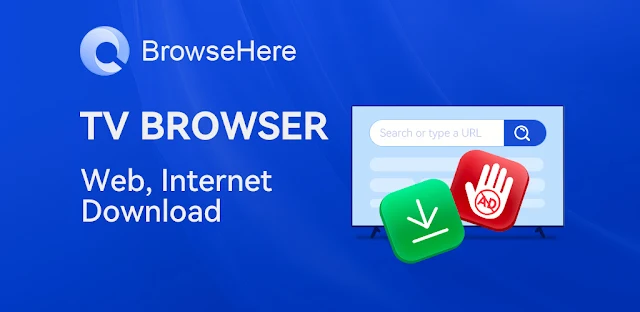
If a page keeps placing promotional panels between the remote focus and Play, I open BrowseHere’s settings and check the Ad Blocker switch. I turn it on before returning to the video page, then reload the page so it can load with that setting in effect. This is a page-navigation fix, not a promise that every interruption inside every video will disappear.
I pay attention to what happens after the reload. If the player area is empty or a button stops responding, I try that site with the switch off and reload once more. Some video pages tie their playback controls to page elements that blockers may affect. Changing one switch at a time tells me more than repeatedly pressing Play.
The cookie blocker is a separate setting to check when a site repeatedly asks for consent or forgets a preference. I decide whether I need that site to retain my choice before changing it. Keeping the two blockers distinct matters when the page looks cleaner but I still cannot get the actual video to start.
055. Bookmark the video page, not the search results
After I find a video page that works with the remote, I use BrowseHere’s bookmark control while that page is open. I do it before leaving the player. A bookmark to a search results page means repeating the hunt later; a bookmark to the working page gives me a direct starting point, even if I still have to press Play.
I check the address or page title shown when saving so I do not keep a temporary results page by mistake. If the video site uses a series page with episode links, I may bookmark that instead of one episode. The useful target is the page I would want to open again, not necessarily the deepest link I reached today.
Browsing history is my fallback when I forgot to save the page. I open History and recognise the site and title before selecting an entry. It is less dependable as a long-term shortcut because it collects every detour along the way. A deliberate bookmark is simpler when someone else also uses the TV browser.
066. Keep IPTV playlists separate from ordinary web video
When I want a live channel, I do not put its name into web video detection and expect a stream to appear. I open BrowseHere’s integrated IPTV player and add a playlist from my IPTV provider. That is a different route from playing a video embedded on a website, and knowing the distinction saves a lot of remote clicks.
I check that I am using the playlist information supplied for that service, then use the IPTV player’s channel view to choose what to watch. I treat a provider’s web page and its playlist as different things: opening the web page may show account information or instructions, while the playlist is what the integrated player uses for channels.
For everything else, I return to the browser: search for the page, check video detection, then open the web video player. That order also keeps unrelated TV tasks out of the way. A home security camera dashboard, for example, may open as a web page, but it is not a live-TV playlist simply because it shows moving video.
The takeaway
I would start with the page that is giving you trouble: check Ad Blocker, reload once, then try video detection and the full-screen player. Save the working page as a bookmark before you leave.
Continue to this site’s Browser TV Web page just below for the app details.
Past The First Look is independent and not affiliated with TCL Group. This guide reflects the reviewer's own setup; menus can differ by device and version.

 TroubleshootingAI Piano Magic Keyboard

 TroubleshootingGroupon

 TipsWalmart
 How-toSamsara Driver

 TipsDrink Alarms

 TroubleshootingLED Light Controller &
 TroubleshootingSony

 How-toDSW Designer Shoe

 TipsSoccer Live Scores

 Best picksIXL
 How-toGmail