phyphox: 6 tips for remote control and clean exports
I’ll show you how to start a phyphox experiment from a browser and save data you can actually use, without disturbing the phone mid-run.
Aaron HaleReviewer · published Oct 24, 2026 · 6 min read
01Put the phone in place before opening Remote access
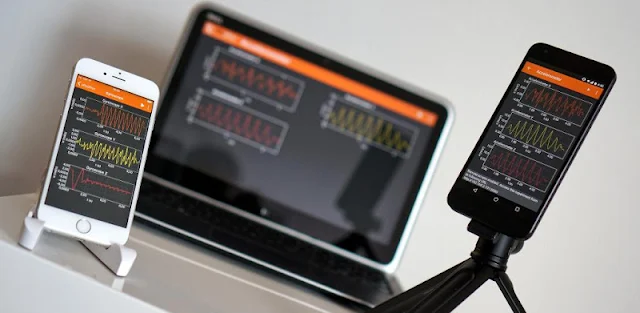
The phone is balanced beside the object you want to measure, and tapping its screen could shift it. I use phyphox’s remote access for that moment: the phone collects sensor data while a browser on another device controls the experiment. It is especially useful for motion and light experiments, where touching the phone changes the conditions you meant to observe.
Open phyphox, choose an experiment, and look in its menu for Remote access. Switch it on, then enter the address shown by phyphox into a browser on a computer connected to the same network as the phone. I treat that address as a control panel for the current experiment, not as a place where my results are permanently stored.
Before pressing Play in the browser, place the phone, check that its screen and sensors face the direction the experiment needs, and keep it still. If I cannot reach the browser page, I check the network connection on both devices before moving the phone. Once the page opens, the next choice is which experiment to run.
02Choose the sensor view that answers your question
A graph can look convincing while answering the wrong question. For a movement check, I start with an accelerometer experiment; for a nearby magnetic field, I pick the magnetometer. I read the experiment name and the graph labels before recording, because changing experiments halfway through leaves me with files that are harder to compare.
The three-axis readings matter when the phone’s orientation might change. Keep the phone in the same position for each run, and note which way it faces. If I rotate it between runs, a change in one axis may reflect the new position rather than the event I wanted to study. That is a setup problem, not something an export format can fix.
This is also where I decide whether remote control is worth using. Unlike remote desktop, phyphox’s browser interface is for controlling the experiment and viewing its data, not operating every part of the phone. I use it when physical separation protects the measurement; for a quick sensor check in my hand, I stay on the phone.
Before triggering the event, I press Play and let the graph show what the sensor reads in its resting position. That quiet stretch gives me something to compare with the change I care about. It pays off when a light turns on, an object moves or a sound begins: the event is easier to identify than in a recording that starts at the same instant.
For repeated runs, I keep the setup consistent: same experiment, same phone position and the same kind of starting condition. I stop the run before changing the setup. Otherwise, the graph can blend the event with my hands repositioning the phone, and I may mistake that movement for part of the result.
I also check the live graph before moving on. A flat line in a motion experiment may mean nothing moved; an unexpected spike may be my touch on the table. Catching that while the phone is still set up is much easier than trying to explain it later in a spreadsheet.
04Keep the browser open until you have stopped the run
Remote access makes it tempting to walk away from the phone and assume the computer is holding everything. I keep the browser tab open while collecting data, use its controls to stop the experiment, and then check the result. The browser is my control point; I do not treat merely seeing a graph there as proof that I have saved a file.
If the browser connection drops, I check the phone and the network rather than starting a second run blindly. A new run could make it unclear which graph belongs to which event. When I am using a shared computer, I close the browser tab after saving what I need so the experiment page is not left open for someone else.
This habit is useful in an online courses exercise, where I may need to submit the underlying readings rather than a picture of a graph. A visible result helps me decide whether to repeat the experiment, but the export is what lets me inspect individual values afterward. I save that separately.
05Export the readings, not just a picture of the graph
When a run looks usable, I open phyphox’s export or save controls for that experiment and choose a data format my next tool can read. The app can export raw data alongside results, which is the option I want when I need to inspect values, make a different graph or compare runs outside phyphox.
I choose the file destination deliberately. If I want the file on the phone first, I use the save-to-filesystem option in the export dialog and pick a folder I can find again. If I intend to move it to cloud storage, I confirm that the saved file exists before sharing it. A graph on screen is not my backup.
I give related runs names that identify the condition, such as “light-on” and “light-off,” using the file manager if the export dialog does not offer naming. I also keep the phone’s orientation in my notes. That small bit of context pays off when two exports contain similar-looking columns but came from different setups.
06Use the new camera experiments when color is the event
For an event defined by a change in light rather than phone movement, I look at phyphox’s camera-related experiments, including Brightness stopwatch, Color stopwatch and Brightness spectrum. Camera-based sensor readings can include luma, luminance, hue, saturation and value. I choose the experiment by the change I need to observe, not by which graph looks most detailed.
I aim the camera at the same area throughout the run and avoid casting a shadow over it. For a color change, I keep other lighting as steady as I can; for a brightness change, I keep the phone fixed so the camera does not see a different patch. Remote access is particularly handy here because a tap near the lens could affect the scene.
Before exporting, I check that the camera view captured the intended change rather than a passing hand or a shift in framing. If it did not, I repeat the run while the setup is still in place. Then I save the readings with a name that identifies what changed, so the file remains useful after I close phyphox.
The takeaway
I would start with one experiment: place the phone, open Remote access on the same network, record a quiet baseline, then export a short run to a folder I can find.
Continue to this site’s phyphox page just below for the app details before you install it.
Past The First Look is independent and not affiliated with RWTH Aachen University. This guide reflects the reviewer's own setup; menus can differ by device and version.

 TroubleshootingAI Piano Magic Keyboard

 TroubleshootingGroupon

 TipsWalmart
 Best picksIXL
 How-toGmail

 How-toDSW Designer Shoe

 TipsSoccer Live Scores
 How-toSamsara Driver

 CompareJewel-Osco Deals &