Gmail: File Receipts Automatically Without Hiding Invoices
I’ll show you how to label receipts as they arrive and keep unpaid invoices visible, starting with one sender cluttering your inbox.
Aaron HaleReviewer · published Oct 17, 2026 · 6 min read
01Start with one receipt, not your whole inbox
A receipt for cloud storage lands beside an invoice that still needs attention. I want both easy to find, but I don’t want Gmail to hide them both. My approach is to label first and archive only a narrowly defined set of receipts. That separates finding a document from deciding whether it belongs in the inbox, which is the distinction that makes this setup useful.
Gmail’s Android app can show and search the labels created by filters, but creating those filters requires Gmail on the web. I recommend using a computer for the setup because the search controls and matching messages are easier to inspect together. Once saved, the rules run on incoming mail without your phone needing to stay open. This is a setup task on the web, followed by everyday checking in the app.
I start with one recurring sender whose receipts have a predictable subject. A subscription receipt is a better first candidate than every message containing the word payment. Open an existing receipt and check its sender address and subject before building anything. Keep an unpaid invoice nearby as a comparison: the first rule should catch the receipt without accidentally sweeping that other message out of sight.
02Preview the exact messages before making a rule
The search preview is my safety check. Gmail filters use search criteria, so the messages returned by a search show whether the proposed rule is sensible. For a first pass, I use the full sender address plus a distinctive subject word. I avoid searching the entire message for receipt, because a promotional message or an ongoing conversation might contain that word without being a receipt itself.
Open Gmail in a computer browser, then select the Show search options icon at the right of the Search mail field.
In From, enter the full sender address copied from your receipt.
In Subject, enter a recurring word such as receipt that appears in that sender’s receipt subjects.
Select Search and inspect the matching messages, including any that look unrelated.
Select Show search options again to adjust From or Subject, then select Search to check the revised results.
Sender alone is often too broad. A service used for project management might send receipts, access alerts, and team notifications from the same address. Subject wording gives the rule another boundary. I check several existing matches rather than trusting the first result. If the results include account notices, I tighten the subject criteria; if useful receipts are missing, I look for the wording those messages actually share.
I give the first rule a plain label such as Receipts. Gmail labels are not exclusive folders: a message can carry that label and still appear in Inbox. That is exactly what I want while checking a new rule. The receipt becomes easier to retrieve, but its visibility does not change. Keep the reviewed search criteria in place for these steps on Gmail’s web interface.
Select Show search options beside Search mail, then select Create filter.
Select the checkbox beside Apply the label, open Choose label, and select New label.
Enter Receipts, then select Create in the new-label dialog.
Leave Skip the Inbox (Archive it), Mark as read, and Delete it unchecked.
Select Also apply filter to matching conversations only if you want to label the existing matches you reviewed.
Select Create filter to save the rule.
Applying the filter to existing matches is optional; the saved rule will handle new matching messages either way. I prefer leaving Mark as read off because filing a message is not the same as reviewing it. The same goes for deletion: a tidy inbox should not depend on throwing away documents you meant to keep. Next, give invoices their own rule so they remain easy to distinguish from completed purchases.
04Give invoices a separate label and leave them visible
An invoice can be a request for action rather than confirmation of a completed purchase. I therefore use a separate label, Invoices, with no archiving action. Gmail cannot reliably infer whether an invoice has been paid from a broad keyword rule. I treat the label as a document category, not a payment status. That keeps the automation focused on filing rather than making decisions the message itself may not support.
Select Show search options, enter the invoice sender in From, and enter its recurring invoice wording in Subject.
Select Search and review the results before proceeding.
Reopen Show search options and select Create filter.
Check Apply the label, open Choose label, select New label, enter Invoices, and select Create.
Leave Skip the Inbox (Archive it) unchecked, then select Create filter.
Receipts for online courses and invoices from a recurring supplier may use different wording, so I build separate narrow rules rather than one large catch-all. More importantly, I check for overlap: an invoice label does not cancel an archive action from another matching filter. If the receipt rule also catches invoices, fix that receipt rule first. Leaving archiving off the invoice rule alone will not protect messages from another rule.
05Archive only the receipt stream you have checked
Once incoming receipts are getting the right label, I consider removing that specific stream from Inbox. This is optional; labels alone may solve the clutter problem. Archiving removes the Inbox label without deleting the message, so receipts remain available under Receipts and through search. I reserve this action for predictable confirmations, not mixed billing messages that might include requests, failed payments, or other items needing attention.
In Gmail on the web, select Settings, then See all settings.
Open Filters and Blocked Addresses and find the receipt rule by its sender and subject criteria.
Select edit beside that rule, review its criteria, then select Continue.
Check Skip the Inbox (Archive it) and keep Apply the label set to Receipts.
Leave Also apply filter to matching conversations unchecked if you want this change to affect only future matches.
Select Update filter to save the change.
If something gets filed incorrectly, I return to Filters and Blocked Addresses and narrow the rule or remove its archiving action. Changing a rule does not automatically put previously archived messages back in Inbox. For those messages, open the Receipts label, select the affected messages, and choose Move to Inbox. Fixing both the rule and the misplaced messages prevents a tidy-looking label from concealing an unfinished cleanup.
06Check the result from the Android app
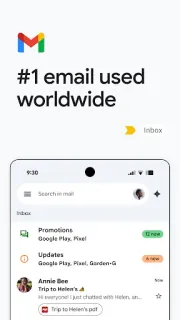
Back on Android, I open Gmail, tap Menu at the upper left, and select Receipts from the label list. I check Invoices the same way. If the labels belong to another account, I tap the profile picture at the upper right and select that account first. Filters belong to the account where they were created, so switching accounts matters when personal purchases and work documents arrive in different inboxes.
For a direct check, I tap Search in mail and enter label:Receipts or label:Invoices. To find labeled invoices still in the inbox, I use label:Invoices in:inbox. These searches help separate two questions: did the message receive its label, and is it still visible in Inbox? I check the next matching message against both questions before expanding the setup to additional senders.
My stopping point is straightforward: receipts have a dependable home, invoices remain visible, and neither rule deletes or marks messages as read. New senders can be added later using the same preview-first process. If a supplier changes its sender address or subject wording, revisit the matching criteria rather than broadening everything at once. A narrow rule that is easy to understand is easier to maintain than an ambitious rule with surprising matches.
The takeaway
Start with one receipt sender: preview the search, apply Receipts, and leave archiving off until new matches look right. Create a separate invoice rule that preserves inbox visibility.
Continue to Past The First Look’s Gmail page just below for more practical ways to organize your mail.
Past The First Look is independent and not affiliated with Google LLC. This guide reflects the reviewer's own setup; menus can differ by device and version.


 TroubleshootingAI Piano Magic Keyboard

 TroubleshootingGroupon

 TipsWalmart
 How-toGmail
 Best picksIXL

 Tipsphyphox

 How-toDSW Designer Shoe

 TipsSoccer Live Scores
 How-toSamsara Driver

 CompareJewel-Osco Deals &